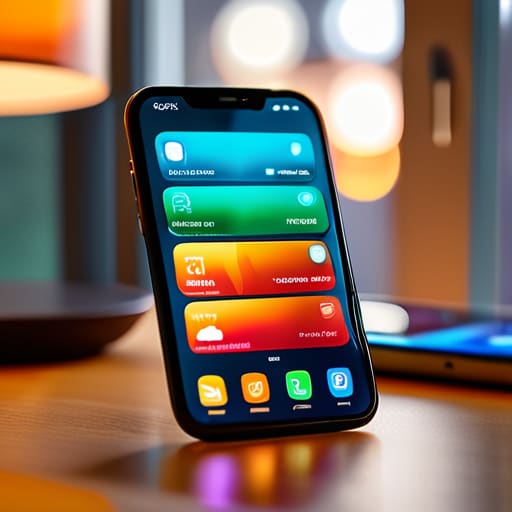
I’m so tired of seeing those “aesthetic” tech influencers post videos about how to make your phone look like a pastel dream, as if having a perfectly color-coded home screen is going to magically fix your productivity. Honestly, most of those overly polished smartphone tips and tricks are just digital clutter disguised as organization. I spent my childhood watching my dad strip down old hardware to make it run better, and I’ve carried that same mindset into my tech life: if a feature isn’t actually serving a purpose, it’s just noise. Your phone shouldn’t be a high-maintenance pet; it should be a tool that stays out of your way.
I’m not here to show you how to pick the cutest widgets or hide your apps in folders just for the vibes. Instead, I’m going to share the actual, functional workflows I use to keep my devices from becoming massive distractions. We’re going to focus on stripping away the digital friction—from aggressive notification management to optimizing battery health—so your device actually works for you instead of the other way around. Let’s get your tech actually functional.
Ios Hidden Settings for a Distraction Free Life
First off, let’s talk about the “Focus” modes. Most people think these are just fancy ways to silence calls, but if you actually dig into the ios hidden settings, you can turn your phone into a tool rather than a slot machine. I personally set up a “Deep Work” profile that doesn’t just silence notifications—it actually hides specific home screen pages. When I’m in the zone, I don’t want to see my social media apps staring at me like they’re hungry. By stripping away those visual triggers, you stop the subconscious urge to scroll and actually get your brain into a flow state.
Next, go into your Settings and hunt down “Background App Refresh.” This is a massive, often overlooked way to optimize mobile battery life and keep your system running lean. You don’t need Instagram or random shopping apps pinging your processor every thirty seconds while you’re just trying to read an article. Turn it off for everything that isn’t mission-critical. It’s a small tweak, but it prevents that weird, phantom battery drain and keeps your device feeling snappy instead of sluggish. It’s not about being a tech minimalist for the aesthetic; it’s about making sure your hardware isn’t working harder than it needs to.
Android Productivity Shortcuts to Reclaim Your Time
If you’re running an Android, you’re already halfway to a more efficient setup because the OS actually lets you tinker under the hood. Instead of letting your apps run wild in the background, start by diving into your Developer Options to look at “Background process limits.” It sounds intimidating, but it’s a total game-changer for a mobile device performance boost. By capping how many apps can hang out in your RAM simultaneously, you stop that mid-afternoon lag that usually happens when you’re trying to switch from a spreadsheet to a quick message.
Beyond just raw speed, you need to leverage those android productivity shortcuts that actually matter. I’m a huge fan of setting up custom gestures or using the “Split Screen” view for multitasking; it’s way more effective than constantly flipping back and forth between windows. Also, don’t sleep on useful mobile app integrations like linking your task manager directly to your calendar. If you spend five minutes setting up these automations now, you’ll save yourself hours of mindless scrolling and manual entry later. It’s not about making your phone look pretty; it’s about making sure it isn’t the thing slowing you down.
The "low-effort, high-reward" tweaks you're probably ignoring
- Stop scrolling through your settings every time you need a charger. Go into your battery settings and find the “Battery Health” or “Optimized Charging” section. If you’re someone like me who keeps their phone plugged in while working on a project, turning this on prevents your battery from degrading into a paperweight by next year.
- Clean out your “junk” storage without deleting your actual photos. Go to your browser settings and clear your cache, then hit that “offload unused apps” button on your phone. It keeps the data but nukes the dead weight, so you aren’t constantly staring at that “Storage Almost Full” warning.
- Fix your terrible typing experience by adding text replacement shortcuts. If you’re constantly typing out your long email address or your home address, set a shortcut like “@@” or “adr” to auto-fill the whole thing. It’s a tiny bit of setup that saves you from a thousand tiny frustrations.
- Audit your notification sounds. Most of us have a dozen different pings that trigger a micro-spike of anxiety. Go through your list and turn off sounds for everything except actual humans (calls/texts). If it’s an app trying to sell you something or a game telling you your energy is full, it doesn’t deserve your auditory attention.
- Use your phone’s built-in document scanner instead of downloading a sketchy third-party app. Whether you’re on iOS or Android, there’s a way to scan a PDF directly through your notes or files app. It’s faster, it doesn’t track your data, and it keeps your home screen from looking like a graveyard of single-use apps.
Stop letting your phone run your life
At the end of the day, whether you’re tweaking your iOS focus modes to kill the noise or setting up Android shortcuts to bypass the clutter, the goal is the same: reclaiming your attention. We’ve gone through a lot of technical tweaks, from silencing those relentless notifications to streamlining your entire workflow, but none of it matters if you don’t actually implement them. You don’t need a brand-new device or a perfectly curated, minimalist home screen to feel in control. You just need to strip away the digital friction that’s constantly pulling you away from what you actually want to be doing.
I know it feels easier to just let the algorithms and the pings dictate your rhythm, but I promise you, a little bit of manual setup goes a long way. Your smartphone should be a tool in your kit—like a reliable multi-tool or a well-maintained synth—not a master that demands your constant presence. Stop trying to achieve that “perfect” digital aesthetic you see on social media and start building a system that actually functions for you. Take ten minutes tonight to audit your settings, turn off the junk, and finally make your technology work for you, instead of the other way around.
Frequently Asked Questions
If I turn off all these notifications, am I going to miss something actually important like a call from my boss or my mom?
Look, I totally get the anxiety. The thought of missing a “life or death” text is real. But here’s the thing: you aren’t nuking everything. You’re just curating. I keep my “VIP” contacts—like my mom and my boss—on a whitelist. Most phones let you set “Emergency Bypass” or “Priority Conversations” so their calls and texts break through even when you’re in Focus mode. You’re not going dark; you’re just silencing the noise.
Will all these background setting tweaks actually make a noticeable difference in my battery life, or is it just placebo?
Honestly? It’s a mix of both, but mostly real. If you’re just changing your wallpaper, no, it’s placebo. But if you’re killing those background refresh processes and dimming that screen, you’re actually reducing the workload on your processor and battery cells. It won’t turn your phone into a two-day beast, but it stops that “death by a thousand cuts” where every little app nibbles away at your percentage. It’s about efficiency, not magic.
I’m not super tech-savvy—is there a way to automate these shortcuts so I don't have to manually change settings every single day?
Honestly, you don’t need to be a tech wizard to do this. If you’re on iPhone, look into “Shortcuts”—it’s basically a way to tell your phone, “Hey, when I get to work, turn on Do Not Disturb automatically.” For Android, check out “Modes and Routines.” You can set it so your phone goes into focus mode the second your alarm goes off. Set it once, forget it, and let your phone do the heavy lifting.
Do these productivity hacks work if I'm constantly switching between an iPhone for work and an Android for my personal life?
Honestly? It’s a bit of a headache, but it actually works if you stop treating them like two separate universes. The trick is to standardize your habits, not your interfaces. Use a cross-platform cloud for your notes and tasks so your brain doesn’t have to context-switch every time you swap devices. If you build the system in the cloud, the hardware becomes secondary. Focus on the workflow, and the OS won’t matter.