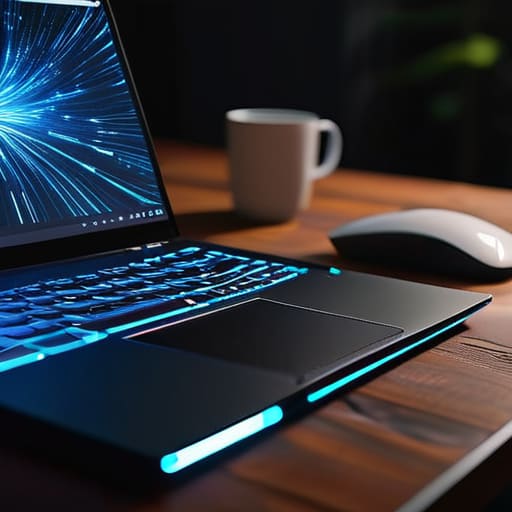
Please don’t tell me you’re about to download one of those “Pro Speed Booster” apps that promise to magically optimize your RAM for $19.99. Seriously, stop. Most of those programs are just glorified bloatware designed to exploit your frustration when your laptop starts sounding like a jet engine mid-project. If you’re searching for how to speed up your computer, you don’t need a subscription service or a fancy “cleaning” tool; you just need to stop letting your OS fight against itself. I’ve spent way too many late nights elbow-deep in old hardware and messy registries to let someone sell you a fake digital quick fix.
I’m not here to give you a list of aesthetic desktop setups or useless “hacks” you saw on a TikTok trend. Instead, I’m going to show you the actual, manual steps I use to keep my own freelance workstation from crawling to a halt. We’re going to look at the stuff that actually matters—from killing background processes that are eating your CPU to managing your startup settings like a pro. My goal is to give you a system that functions, so you can get back to your actual life without the tech getting in your way.
Optimize Windows Startup Programs to Reclaim Your Morning

You know that feeling when you press the power button, walk away to grab a coffee, and come back only to find your computer is still staring at you with a loading icon? It’s infuriating. Most of the time, it’s because you have a dozen different apps—Spotify, Steam, Discord, even some random printer software you haven’t used in six months—all fighting for control the second you log in. To fix this, you need to optimize Windows startup programs so they aren’t all trying to sprint at the same time.
Open your Task Manager (Ctrl + Shift + Esc) and click over to the “Startup” tab. You’ll see a list of everything trying to launch itself automatically. My rule of thumb? If you didn’t specifically ask for it to open the moment you turn on your machine, disable it. You aren’t deleting the app; you’re just telling it to wait until you actually need it. It’s a tiny change, but it makes a massive difference in how quickly you can actually get to work. Once you manage background processes like this, your PC stops feeling like a cluttered junk drawer and starts feeling like a streamlined tool again.
Manage Background Processes Before They Drain Your Sanity
If you’ve ever felt like your laptop is working harder to do absolutely nothing, you’re probably right. It’s easy to assume a slow machine means it’s dying, but more often than not, it’s just being suffocated by a dozen little apps you forgot you even installed. When you manage background processes effectively, you’re essentially telling your computer to stop multitasking on things that don’t actually matter to you. I used to let every single utility and chat app run in the shadows, and my fan sounded like a jet engine taking off every time I opened a browser tab.
To fix this, pull up your Task Manager (Ctrl + Shift + Esc) and take a look at the “Processes” tab. Look for anything hogging high CPU or memory usage that you aren’t actively using. I’m talking about those random updater services or “helper” apps that insist on running 24/7. It’s not about deleting everything—you don’t want to break your system—it’s about ruthless prioritization. If an app doesn’t need to be active for you to get your work done, kill the process. It’s a small tweak, but it’s one of the fastest ways to stop your hardware from feeling sluggish and overwhelmed.
The Quick Wins: 5 Ways to Stop the Lag Without Breaking a Sweat
- Stop hoarding digital junk. We all have that “Downloads” folder that looks like a graveyard of PDFs and installers from 2021. Spend ten minutes deleting the stuff you don’t need and emptying your trash; your hard drive needs breathing room just as much as you do.
- Check your browser extensions. I know, having a specialized tool for everything feels productive, but if you have fifteen Chrome extensions running, you’re basically asking your RAM to do a marathon while wearing lead boots. If you haven’t used it in a month, kill it.
- Give your hardware a literal breather. If your laptop sounds like a jet engine taking off, it’s probably overheating. Dust out your vents with some compressed air. It’s not the most glamorous task, but keeping things cool stops your processor from throttling itself just to stay alive.
- Stop treating your desktop like a filing cabinet. Every single icon sitting on your desktop is something your computer has to keep “ready” in its memory. Move those files into actual folders; your system (and your eyes) will thank you.
- Run a quick scan for the sneaky stuff. You don’t need to go full paranoid, but if things feel weirdly sluggish, run a malware scan. Sometimes “slow computer” is just code for “something is running in the shadows that shouldn’t be.”
Stop Fighting Your Hardware and Start Using It
Look, we’ve covered a lot of ground here, from trimming the fat off your startup list to hunting down those sneaky background processes that are eating your RAM for breakfast. The goal isn’t to turn your laptop into a high-end gaming rig overnight, but to stop the constant friction that makes every task feel like a chore. By managing your startup apps and keeping a closer eye on what’s actually running in the background, you’re essentially clearing the mental clutter from your machine. It’s about making sure your tech serves you, rather than you spending your entire afternoon waiting for a progress bar to move.
At the end of the day, I don’t care if your desktop is perfectly organized or if you have the most expensive setup on the market. I just want you to have tools that actually work when you need them to. Technology should be a bridge to your creativity and productivity, not a barrier that frustrates you every time you open a browser. So, take ten minutes to run through these steps, reclaim your digital space, and get back to doing what you actually enjoy. Your computer is just a tool—make sure it’s a functional one.
Frequently Asked Questions
Is it actually safe to disable all those weird-looking background processes, or am I going to break something?
Look, I get it. Seeing a list of cryptic, gibberish names in Task Manager is terrifying. You don’t want to click “End Task” and accidentally brick your entire OS. Here’s my rule of thumb: if it’s a known brand (like Adobe, Steam, or Spotify), you’re safe to kill it. If it looks like a string of random letters or says something like “System” or “Kernel,” leave it alone. When in doubt, Google the name first. Better safe than sorry.
I’ve tried cleaning up my startup apps, but my laptop still feels like it's running through molasses—what else could be the bottleneck?
If you’ve already tackled the startup bloat and it’s still crawling, we need to talk about your hardware’s literal breathing room. Check your storage—if your drive is over 90% full, your OS is basically suffocating because it has no space to swap temporary files. Also, take a peek at your temperatures. If your fans are screaming and the chassis is hot, your CPU is likely thermal throttling to save itself from melting.
How much of this is just my hardware being old, and at what point does "optimizing" become a waste of my time compared to just buying a new one?
Look, I’ll be real with you: there’s a fine line between optimizing and chasing ghosts. If you’ve cleared your startup apps and managed your processes, but your CPU is still hitting 100% just opening a browser, you’re fighting a losing battle against physics. If your hardware is over five or six years old and lacks an SSD, stop wasting your precious time on software tweaks. At that point, your money is better spent on a machine that actually keeps up with your life.
Will running these cleanup steps affect my battery life, or is it mostly just about the CPU speed?
Honestly, it’s a win-win. While these steps are mostly about freeing up CPU cycles so your computer doesn’t feel like it’s running through molasses, they definitely help your battery life too. When you kill off those background processes and startup hogs, your processor doesn’t have to work nearly as hard. Less work means less power draw, which means you can actually finish a project without hunting for your charger every twenty minutes.