I’m so tired of seeing those “influencer” setups where people spend three hundred dollars on ring lights and professional-grade backdrops just to look like they’re filming a high-budget commercial. Honestly, if you’re spending your entire paycheck trying to figure out how to look better on video calls, you’re doing it wrong. I remember my first big freelance client meeting; I had this massive, clunky LED panel setup that kept buzzing in my ear and making my skin look like unbaked dough. It was a total system failure. I realized then that looking professional isn’t about buying more gear—it’s about understanding how light and positioning actually work in a real, messy room.
I’m not here to sell you a dream aesthetic or a list of expensive gadgets you don’t need. Instead, I’m going to show you how to build a functional video setup using the stuff you already own. We’re going to talk about leveraging natural light, optimizing your camera angle, and cleaning up your digital environment so you can show up feeling capable and actually focused on the conversation. No fluff, no gatekeeping, just simple systems that work.
Simple Professional Webcam Lighting Setup Strategies
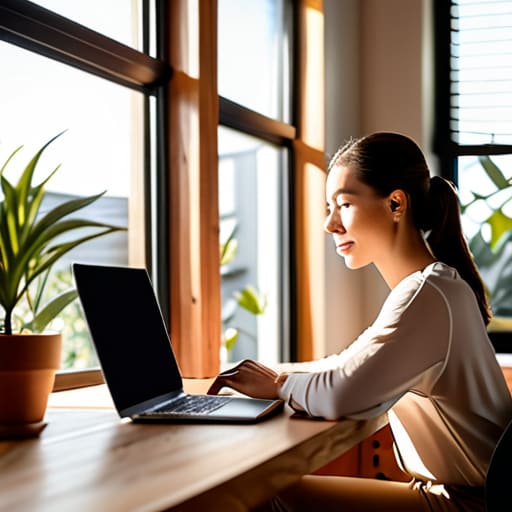
Look, you don’t need a thousand-dollar ring light to stop looking like a grainy ghost in a dark cave. Most of the time, the best professional webcam lighting setup is literally just a window. If you can, position your desk so you’re facing the light source directly. This fills in those awkward shadows under your eyes and makes you look awake, even if you’ve been staring at terminal windows for six hours straight. If you’re working at night, grab a basic desk lamp, pull it slightly away from your face, and aim it at the wall in front of you. This bounces the light softly across your workspace, preventing that harsh, direct glare that makes you look like you’re being interrogated.
If you’re dealing with a room that’s naturally dim, don’t just crank up your screen brightness—that just turns your face into a blue-tinted mess. Instead, try a “two-point” approach: one soft light source in front of you and perhaps a small lamp behind you to create a bit of depth. This helps with your remote work professional appearance by separating you from the background, making the whole setup feel intentional rather than accidental. It’s about managing the light, not buying more gear.
Finding the Best Camera Angles for Video Meetings
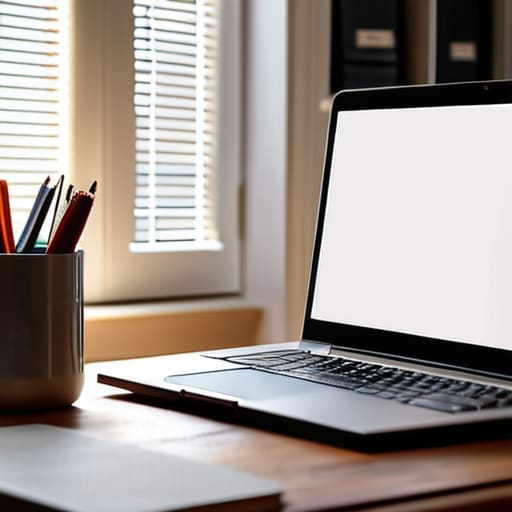
Let’s talk about the “laptop on the desk” trap. If your camera is sitting on your desk looking up at you, you’re essentially giving everyone a view of your nostrils and your ceiling fan. It’s not a great look, and it definitely doesn’t scream “I have my life together.” To master the best camera angles for video meetings, you need to get that lens to eye level. I usually just grab a stack of old tech manuals or a sturdy coffee mug to prop my laptop up. If you want to go full pro, a cheap tripod is a tiny investment that makes a massive difference in your remote work professional appearance.
Once you’ve got the height right, pay attention to the tilt. You want the camera slightly above your eye line, angled just a hair downward. This prevents that heavy-chin effect and keeps the focus on your face rather than your forehead. While you’re adjusting things, take a quick second to look at what’s behind you. You aren’t trying to stage a Pinterest set, but minimizing background distractions—like a pile of laundry or a messy bookshelf—helps keep the focus on the conversation. It’s not about being perfect; it’s just about making sure your environment isn’t doing the talking for you.
The Low-Effort Fixes for a Better Digital Presence
- Audit your background for “visual noise.” You don’t need a curated bookshelf, but if there’s a pile of laundry or a tangled mess of cables behind you, it’s going to distract people from what you’re actually saying. Keep it simple: a plain wall or a tidy corner works better than a cluttered room.
- Check your audio hygiene. You can have 4K video, but if you sound like you’re broadcasting from inside a tin can, no one is listening. If you can, grab a dedicated USB mic or even just use wired earbuds; the built-in laptop mic is notorious for picking up every single click of your mechanical keyboard.
- Manage your “eye contact” habit. It feels weird, I know, but try to look at the camera lens instead of your own face on the screen when you’re speaking. It creates the illusion of actual connection rather than you just staring intensely at your own forehead.
- Control your digital distractions. If you’re sharing your screen, close those twenty tabs you have open for “later” and turn off your Slack/Discord notifications. There is nothing more unprofessional than a private chat popping up mid-presentation.
- Dress for the vibe, not the trend. You don’t need a suit, but avoid wearing a shirt that perfectly matches your background color—you’ll end up looking like a floating head. A bit of contrast goes a long way in making you stand out from the digital void.
Stop Overthinking the Setup
At the end of the day, looking “good” on camera isn’t about owning a $300 ring light or having a perfectly curated bookshelf behind you. It’s about the small, functional tweaks that make a difference: facing a window for natural light, elevating your laptop so you aren’t staring down your own chin, and making sure your tech actually works when you hit “join.” Once you nail the basic lighting and the right angle, you’ve already done 90% of the heavy lifting. You don’t need a professional studio; you just need a system that actually functions without adding extra stress to your morning routine.
My biggest piece of advice? Don’t let the pursuit of the “perfect” setup become another item on your overwhelming to-do list. The goal isn’t to look like a polished influencer; it’s to feel capable and present in your digital workspace. When your setup is simple and reliable, you stop worrying about how you look and start focusing on the actual conversation. Strip away the unnecessary gear, fix your angles, and get back to what matters. You’ve got this.
Frequently Asked Questions
I don't have a fancy external mic, so how do I stop my audio from sounding like I'm underwater?
Look, you don’t need a $300 Shure mic to sound human. That “underwater” vibe usually happens because your laptop is fighting echoes or your mic is too far away. First, ditch the empty-room echo—throw a rug down or even just a few pillows nearby to soak up the bounce. Second, get closer to the mic, but don’t crowd it. If you’re using a headset, keep the boom arm near your mouth, not your chin. Simple.
My room is tiny and cluttered; is there a way to fix my background without buying a ridiculous green screen?
Look, I grew up in a cramped apartment, so I get it—not everyone has a dedicated, minimalist home office. You don’t need a green screen to hide the chaos. First, try the “depth trick”: pull your desk away from the wall so the background is slightly out of focus. If that’s not enough, a simple physical divider like a bookshelf or even a tall plant works wonders. Keep it intentional, not perfect.
How do I stop my laptop fan from kicking in and sounding like a jet engine every time I join a meeting?
That jet engine sound is basically your laptop screaming for help. First, stop the “blanket cozy” setup—if your laptop is on a duvet or your lap, you’re choking the vents. Use a hard, flat surface or a cheap laptop stand to let it breathe. Also, check your Task Manager; close those twenty Chrome tabs you aren’t using. If your system is fighting for its life just to run Zoom, it’s going to overheat.
What do I do if my internet is trash and my video keeps freezing or getting pixelated?
Look, we’ve all been there—stuck in a pixelated nightmare while trying to sound coherent. If your bandwidth is tanking, stop fighting the hardware and start managing the load. First, kill every background app that’s sucking up data (looking at you, Dropbox and Steam). If you’re on Wi-Fi, try to plug in via Ethernet; it’s not “aesthetic,” but it’s stable. If all else fails, just turn off your incoming video. It saves massive bandwidth and lets you actually hear the conversation.